
Microsoft Teams Native Integration
Understand how Zime records meetings and how security, consent, control, and setup are handled for Microsoft Teams native recording.
Last updated: September 2026
Why this matters
Teams want accurate notes and reliable follow-up, but recording only works if it is secure, transparent, and under control. This guide explains how Zime handles recording in customer-facing conversations using Microsoft Teams native recording.
How Zime records Teams meetings
Zime can record Microsoft Teams meetings two ways:
- Company Notetaker: joins your meeting as a visible participant. Works out of the box, no setup required, removable by any host.
- Native recording: uses Microsoft Teams' own recording infrastructure. Nothing extra joins the call, and audio/video quality is higher. This is what the rest of this guide sets up.
Until native recording is fully set up, your meetings are still being recorded. Company Notetaker covers the gap in the meantime, so you don't lose recordings while completing this setup.
Externally hosted meetings (someone outside your company hosting the Teams call) are always recorded via Company Notetaker. Native recording only applies to meetings hosted inside your own Microsoft tenant.
Who this is for
- Teams admins configuring Microsoft Teams policies
- Zime workspace admins connecting Microsoft for the organization
- Meeting organizers, sales reps and customer-facing teams
- Security-conscious buyers evaluating recording behavior
Setup summary
Setup has three parts, done in this order:
- Microsoft Teams Settings: your Teams admin does this once, in Microsoft's Teams admin center (not in Zime). Do it first.
- Admin Consent Setup: your Zime workspace admin does this once, for your whole organization, at least 30 minutes after Part 1.
- User Setup: Enable Native Recording: each meeting organizer does this themselves.
Not an admin? Skip straight to Part 3 below. You'll see an "Admin Setup pending" message on your own screen until Parts 1 and 2 are done by someone else.
Microsoft Teams Integration Onboarding Guide
Part 1: Microsoft Teams Settings
Who does this: whoever manages Microsoft Teams for your organization, in the Microsoft Teams admin center. Nothing here happens in Zime.
Meeting policy (applies to your meeting organizers):
- In the Teams admin center, go to Meetings → Meeting policies.
- Open the Global policy, or the custom policy assigned to your meeting organizers.
- Under Recording & transcription: turn on Allow cloud recording; turn on Allow transcription (the Teams transcript is what gives Zime the speakers' names); keep automatic recording allowed for meetings (do not block it).
- Save, and make sure the policy is assigned to the users or groups who organize meetings.
Transcript API access (Microsoft keeps this off by default):
- In the Teams admin center, go to Meetings → Meeting settings → Transcript API access.
- Turn Microsoft Graph access on.
- Select Configure and turn Include speaker attribution on.
- Save.
Without Transcript API access, Zime still receives the recording but not the Teams transcript, so speaker names are missing.
Nothing else is needed. You do not need to turn on automatic recording for each meeting, and Teams Premium is not required: 10 minutes before each eligible meeting, Zime turns on "Record and transcribe automatically" for it through the organizer's connected Teams account.
Part 2: Admin Consent Setup
Who does this: your Zime workspace admin (Admin role in Zime), at least 30 minutes after Part 1 is done.
This step also needs approval from your organization's actual Microsoft 365 admin. If the person doing this in Zime isn't also your M365 admin, Microsoft's own consent screen will ask for that approval separately.
What it does: connects your Microsoft 365 tenant to Zime, so Zime can receive recording and transcript data through Microsoft's webhooks.
Steps:
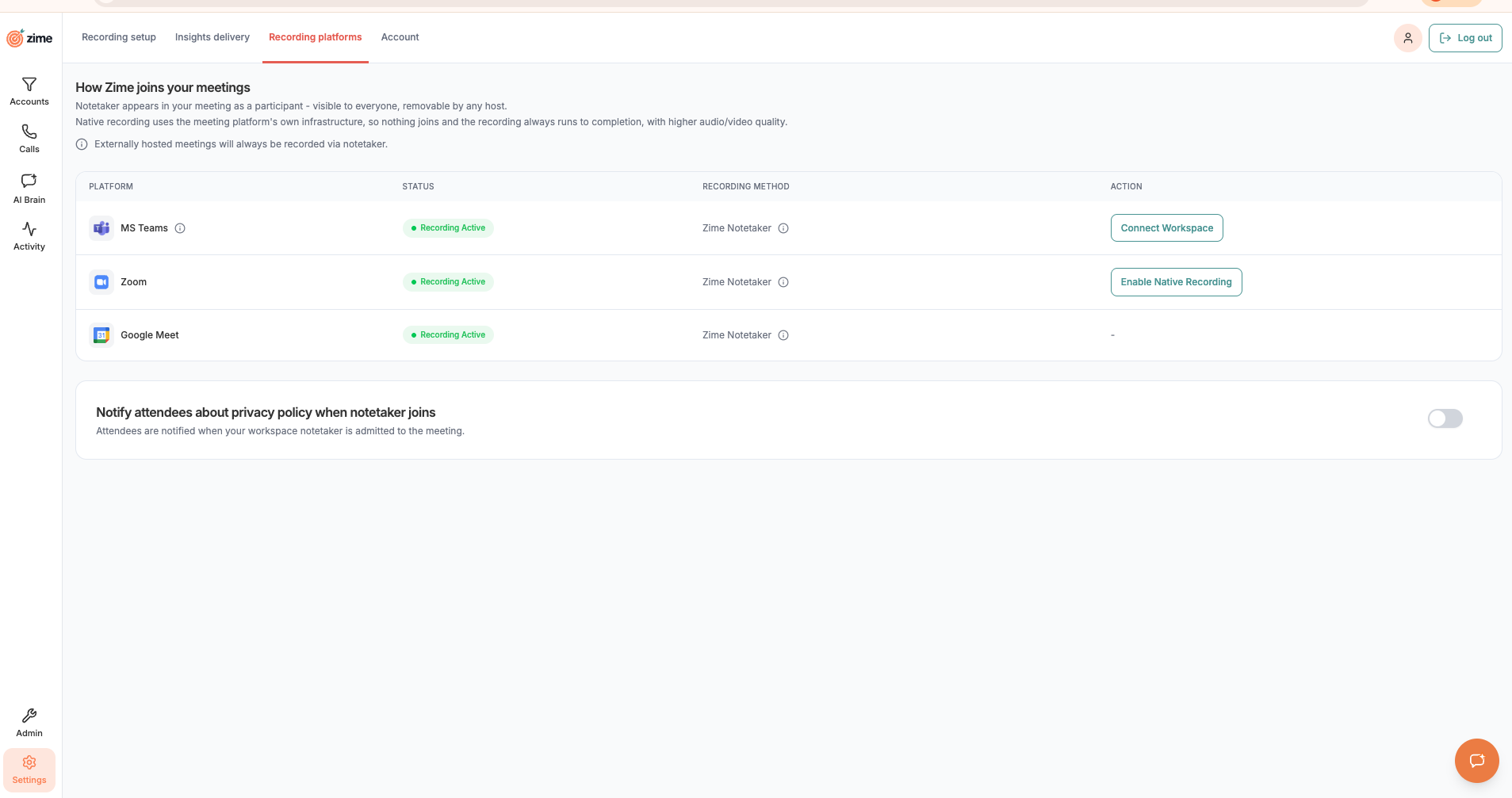
- Go to Settings (left sidebar) → Recording platforms tab
- Find the MS Teams row.
- Click Connect Workspace
- Complete Microsoft's admin-consent prompt in the new tab that opens
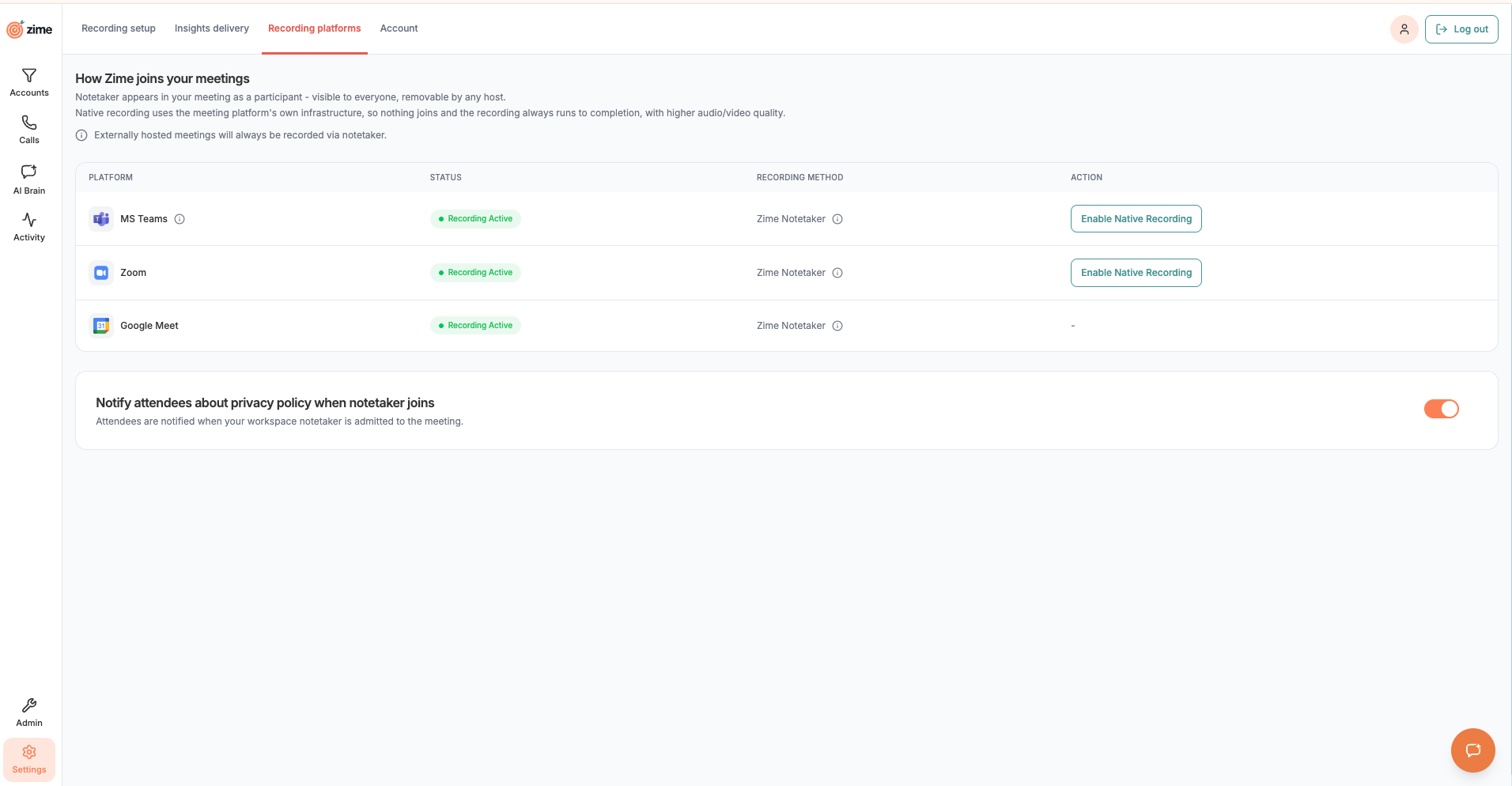
There's no separate "connected" confirmation message. Microsoft returns you to Zime Settings, on the Recording setup tab. Open the Recording platforms tab: the Connect Workspace button is replaced by Enable Native Recording, and every teammate who has connected their calendar now sees the same button on their own MS Teams row (Part 3, below). If you go back to the tab where you clicked Connect Workspace, refresh it first. If the page shows an error instead, contact support@zime.ai: the connection may be only partly set up.
Part 3: User Setup: Enable Native Recording
Who does this: each person who organizes Teams meetings you want recorded, no special role needed. Native recording follows the meeting organizer, so attendees and reps who never send meeting invites do not need this step.
Prerequisites:
- Your calendar must already be connected in Zime
- Your admins must have completed Parts 1 and 2 above
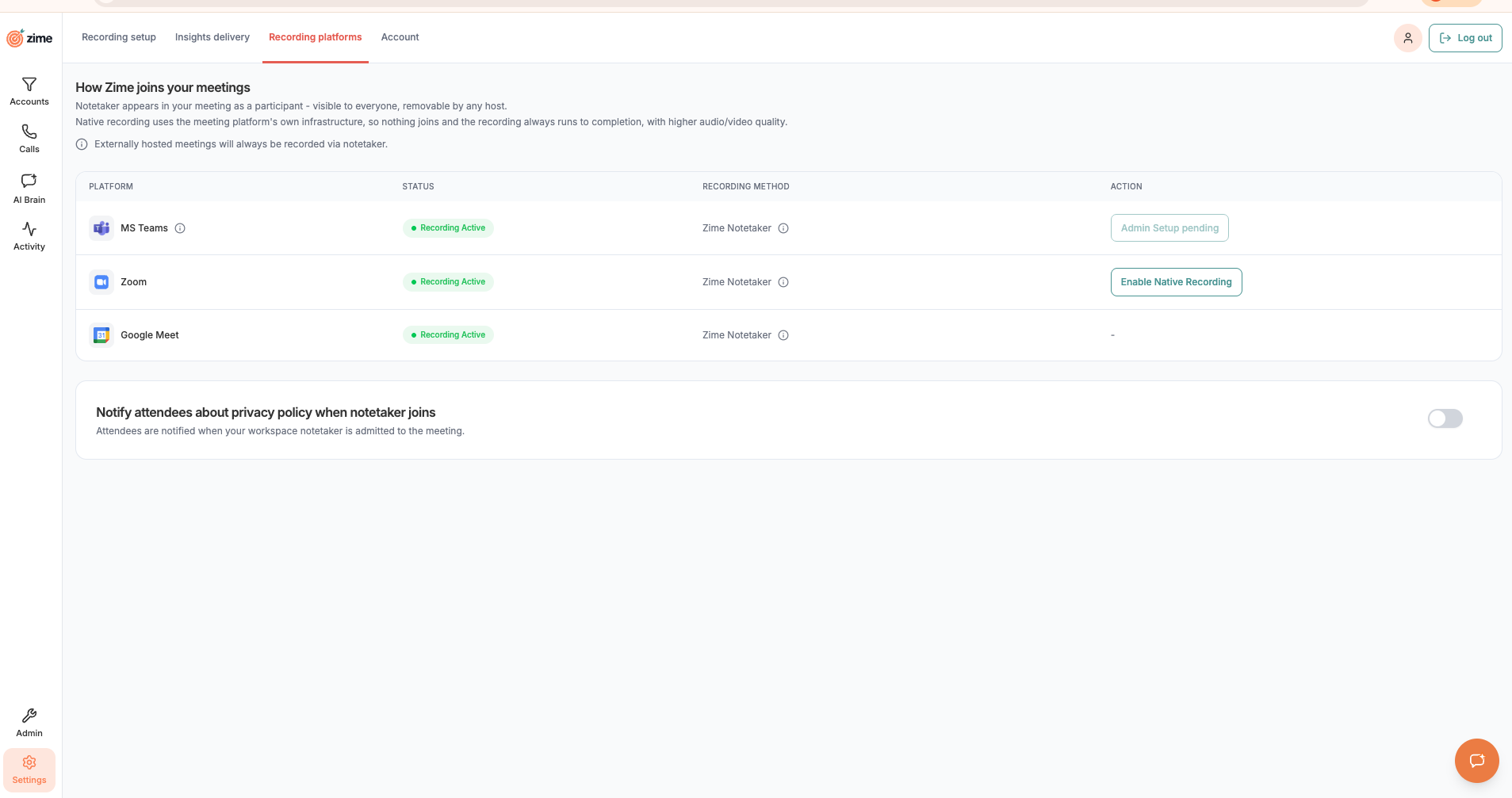
If Part 2 isn't done yet, your MS Teams row shows a disabled Admin Setup pending button instead. Hover over it to see: "Admin setup is required first. Before reps can enable Microsoft Teams native recording, a workspace admin must connect Microsoft for your organization." Your meetings are still recorded by Company Notetaker in the meantime.
Steps:
- Go to Settings → Recording platforms
- On the MS Teams row, click Enable Native Recording
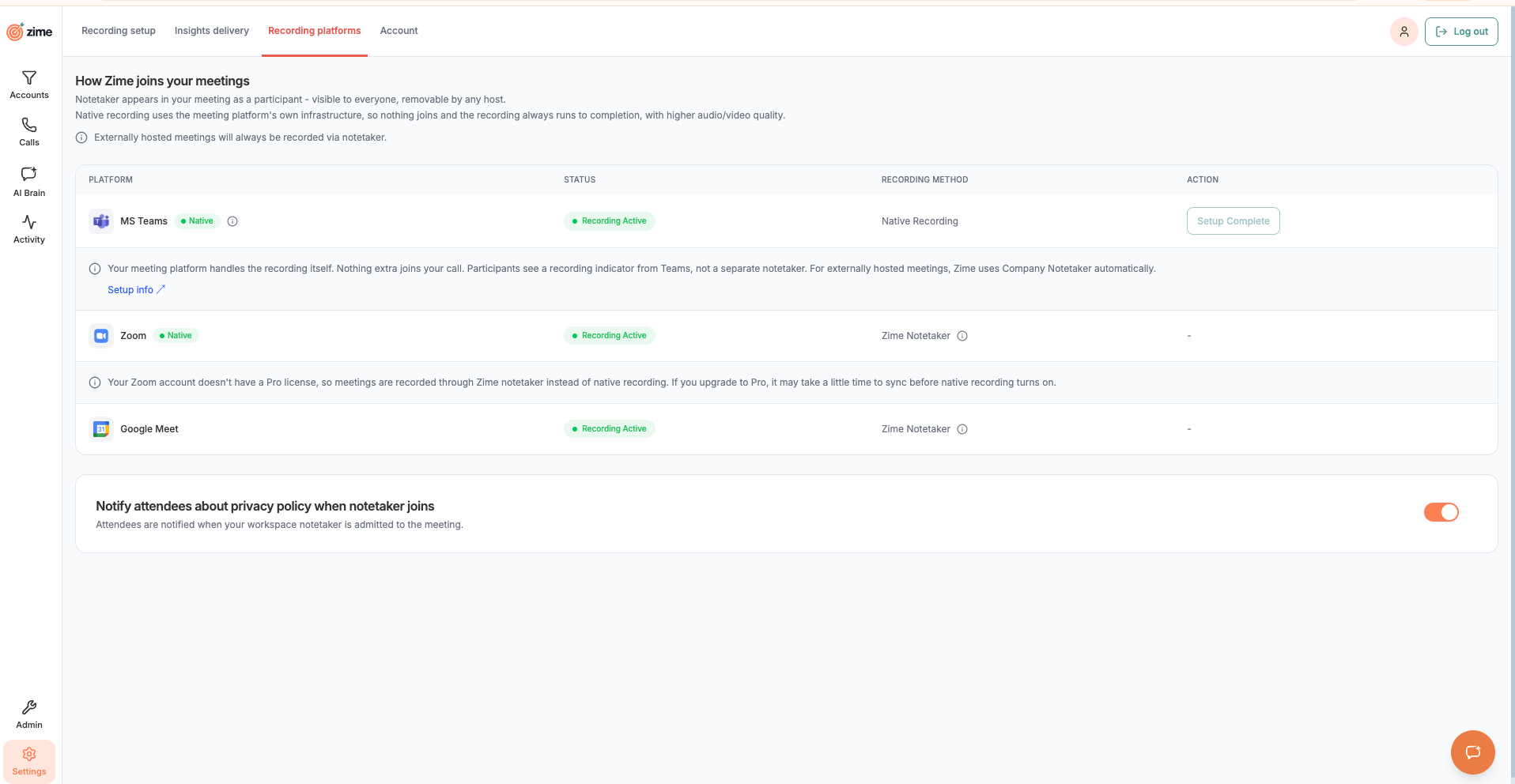
After it's done, the row shows a green Native badge next to "MS Teams," Recording Method changes to Native Recording, and the button becomes a disabled Setup Complete.
A note appears underneath: "Your meeting platform handles the recording itself. Nothing extra joins your call. Participants see a recording indicator from Teams, not a separate notetaker. For externally hosted meetings, Zime uses Company Notetaker automatically."
Not seeing the button, or it's greyed out? Click the ⓘ next to "MS Teams". It shows exactly which prerequisite is still missing: your calendar connection, or your admin's step in Part 2.
Need help?
Have more questions? Contact support@zime.ai
Why use native Teams recording
- No bot in the meeting: Teams records the call itself, so there is no notetaker in the participant list and nothing to admit from the lobby.
- Nothing to do per meeting: 10 minutes before each eligible meeting, Zime turns on "Record and transcribe automatically" for it.
- Speaker names come from the Teams transcript, when your admin lets apps read meeting transcripts.
- Teams keeps the original recording in your Microsoft 365, and Zime keeps its own copy.
Dos
- If you send meeting invites, connect Teams in Zime: native recording works only for meetings whose organizer has connected Teams.
- Keep your calendar connected and schedule meetings in it with a Teams link. Calls without a calendar invite, such as Meet Now, are not recorded natively.
- Start meetings no more than 10 minutes early. If you start earlier, start the recording yourself in Teams.
- Keep the recording running once it starts. If it is stopped and started again, Teams can create a second recording, and Zime keeps only the first.
Don'ts
- Don't switch on "Record and transcribe automatically" yourself: Zime does it for the meetings your recording preferences allow.
- Don't expect native recording when someone outside your company hosts: the Zime notetaker joins those meetings instead, if your workspace allows it.
- Don't rely on switching the notetaker off to stop Teams: once Zime turns on "Record and transcribe automatically" for a meeting, it stays on, including for later meetings of a recurring series. Turn it off in the Teams meeting options.
Admin Consent & Setup
Why is admin consent required for the Teams integration?
Admin consent lets Zime receive meeting recordings and transcripts from your Microsoft 365 tenant. Without it, Zime cannot receive recording data from Teams.
Who can grant admin consent?
Two roles are involved. A Zime admin starts the connection in Zime (Settings → Recording platforms → Connect Workspace), and a Microsoft 365 admin who can grant tenant-wide consent, such as a Global Administrator, approves it on Microsoft's consent screen. One person can do both if they hold both roles. Microsoft requires this approval for the level of permissions involved.
How do I know if admin setup is already completed?
Go to Settings → Recording platforms and click the ⓘ next to MS Teams. If the first step, Admin connects workspace, shows ✓ Done, admin setup is complete.
The button on the MS Teams row tells you too:
- Connect Workspace (Zime admins) or Admin Setup pending (everyone else): admin setup is not done yet.
- Enable Native Recording that you can click, or Setup Complete: admin setup is done.
- Enable Native Recording grayed out: your own calendar is not connected yet, so the button cannot show admin status. Use the ⓘ checklist instead.
The Recording Active status on the same row does not mean native recording is set up. It means your calendar is connected and Zime can record your meetings on that platform, possibly with the Zime notetaker (the row then shows Company Notetaker as the recording method).
Can I complete admin setup if I'm not a Microsoft 365 admin?
Not on your own. If you are a Zime admin, you can start it by clicking Connect Workspace, but a Microsoft 365 admin must sign in on Microsoft's consent screen and approve it. If you are not a Zime admin, ask your Zime admin to start it.
What permissions are being granted during admin consent?
Admin consent gives Zime's Teams app these Microsoft Graph permissions for your organization:
- OnlineMeetings.Read.All and OnlineMeetings.ReadWrite.All: read and update Teams meetings
- OnlineMeetingRecording.Read.All: read meeting recordings
- OnlineMeetingTranscript.Read.All: read meeting transcripts
- CallRecordings.Read.All: read call recordings
Zime changes only one meeting setting: it turns on "Record and transcribe automatically" for eligible meetings. There is no access to chat, mail, files or calendars.
When each organizer enables native recording, they sign in and give Zime the same kind of meeting, recording and transcript access on their behalf, plus their basic profile (name and email address).
Can I revoke admin consent after granting it?
Yes. Revoke it in the Microsoft Entra admin center (or the Azure portal) under Enterprise applications. Zime's native recording app has application ID 8674ff13-6f04-4c3f-83d7-27a5318d6ea4.
Zime then stops receiving Teams recordings, and recordings already in Zime stay in Zime. If bot fallback is on for your workspace, the Zime notetaker records eligible meetings instead. Meetings where Zime already turned on "Record and transcribe automatically", including every later meeting of a recurring series, keep recording in Teams until the organizer turns that option off in the meeting options.
Does Zime need tenant-wide admin consent?
Yes. An admin approves Zime once for the whole company. After that, each person who organizes meetings connects their own Teams account in Zime, and native recording works for the meetings they organize.
Can we enable this for selected users only?
Yes. Admin consent is company wide, and each user then connects their own Teams account. Native recording follows the meeting organizer, so roll out to users who organize their own customer meetings.
How long does the setup take end-to-end?
The Teams settings (step 1) and admin consent (step 2) are done once for the company and take a few minutes each. Wait at least 30 minutes between them so Microsoft can apply the Teams settings. Each organizer's own setup (step 3) takes under a minute. After any change in Zime, wait a few minutes and refresh the page.
What Microsoft licenses are required for this to work?
Meeting organizers need a Microsoft 365 license that includes Teams meeting recording to the cloud; your Microsoft 365 admin can confirm which of your plans include it. Teams Premium is not needed: Zime turns on "Record and transcribe automatically" in each meeting's options, and Microsoft requires Premium only for meeting templates, which Zime does not use.
Does it work with all Microsoft 365 plans?
It works with Microsoft 365 plans that include Teams cloud meeting recording. Teams Premium is not required. Your admin should also set the Teams settings in Part 1 of the onboarding guide on the Overview tab: allow cloud recording and transcription, keep automatic recording allowed, and turn on transcript access for apps.
Do we need Azure admin involvement?
Only during setup. A Teams admin checks the Teams settings (step 1), and a Microsoft 365 admin approves admin consent once (step 2). After that, an admin is needed only to change those settings or to revoke consent. Day-to-day use needs no admin action.
Can we pilot this with a subset of users?
Yes. Complete admin consent once, then have only your pilot users enable native recording in their settings. Native recording follows the meeting organizer, so pick pilot users who organize their own customer meetings. Recording preferences in Zime can also limit which meetings are eligible during the pilot.
Why do we see several Zime apps in Microsoft Entra?
Zime uses separate Microsoft apps for separate features:
- Native recording: application ID 8674ff13-6f04-4c3f-83d7-27a5318d6ea4, approved from Connect Workspace in Zime Settings
- Zime mobile app: application ID e9b17ec8-756d-4c74-9ba9-2b761c3b42cb
- Zime app inside Teams, for prep notes: bot ID 00c3a9ee-0b6f-4099-9eef-9011792c5c95
In Microsoft Entra, find them under Enterprise applications, not App registrations. App registrations only lists apps created inside your own tenant.
User Setup & Native Recording
Why do I need to enable native recording?
Enabling it connects your Teams account, so Zime can turn on recording for meetings you organize. Without it, meetings you organize are not recorded natively; if bot fallback is on for your workspace, the Zime notetaker records them instead.
Do I need to enable native recording for every user?
Only for the people who organize meetings. Native recording runs through the organizer's connected Teams account, so an eligible meeting can be recorded natively once its organizer has enabled native recording, whoever attends. Attendees do not need to enable it.
I'm a user but don't see the Microsoft Teams section at all
If the MS Teams row shows only a dash, your workspace records with a third party recorder (for example Gong or Fireflies), so native recording is not offered. Otherwise the integration may not be set up for your organization; ask your admin to check that admin consent is done.
What happens if a user hasn't enabled native recording?
Meetings they organize are not recorded natively. If bot fallback is on for your workspace, the Zime notetaker keeps recording their eligible meetings as before. They can enable native recording at any time from Settings.
Recording Behavior
How is Native Recording different from bot-based recording?
Native recording uses Teams-native capture. There is no visible bot joining the meeting. The recording is handled through Microsoft's own recording infrastructure, which means:
- No bot presence in the participant list
- Recording behavior is governed by Teams policies
- The experience is more seamless for participants
If Zime cannot use Teams recording for a meeting, it can send the Zime notetaker instead so the meeting is not lost. See What is bot fallback?
What is bot fallback?
When Zime cannot use Teams native recording for an eligible meeting, bot fallback sends the Zime notetaker (shown as Company Notetaker in Settings) to record it instead, so the meeting is not lost. It is a workspace setting, and it is on by default. If it is off, a meeting that cannot be recorded natively is not recorded. To check or change it for your workspace, contact support@zime.ai.
Does Zime automatically start recording?
Yes, for eligible meetings. 10 minutes before the meeting, Zime turns on "Record and transcribe automatically" through the organizer's connected Teams account. This works when admin setup is done, the organizer has connected Teams in Zime, the meeting matches your recording preferences, and your Teams policy allows cloud recording.
Does it rely on Teams recording being enabled?
Yes. The organizer's Teams meeting policy must allow cloud recording. For the best results it should also allow transcription (for speaker names) and keep automatic recording allowed, and your admin should let apps read meeting transcripts (Teams admin center → Meetings → Meeting settings → Transcript API access). You do not need to set meetings to record automatically; Zime switches on "Record and transcribe automatically" for each eligible meeting. If a meeting does not allow recording, Zime sends the Zime notetaker instead when bot fallback is on.
What if recording is not manually started in Teams?
No manual start is needed. 10 minutes before each eligible meeting, Zime turns on "Record and transcribe automatically" for it. The one exception: if the meeting has already started by then, start the recording yourself (see I started the meeting a few minutes early. Is it still recorded?). If Zime cannot switch it on, for example because the organizer has not connected Teams, the Zime notetaker joins instead when bot fallback is on.
Where does the recording come from?
The recording comes from Microsoft Teams' own cloud recording. Zime receives it through Microsoft Graph notifications that are set up when your admin connects Zime (admin consent). For natively recorded meetings, no Zime bot joins: Zime only turns on Teams' own "Record and transcribe automatically" option.
Does Zime depend on Microsoft cloud recordings?
Yes. Zime's native recording integration relies entirely on Microsoft's cloud recording infrastructure. If Teams cloud recording is unavailable or disabled by policy, Zime cannot capture the meeting through this integration. When Zime can tell before the meeting that Teams recording will not work, it sends the Zime notetaker instead if bot fallback is on.
Can Zime record if Teams recording fails?
It depends on when it fails. If Zime cannot switch on Teams recording before the meeting (for example the organizer has not connected Teams, or policy blocks recording), Zime sends its notetaker instead, when bot fallback is on. If Teams recording was switched on but then fails or is stopped during the meeting, Zime only receives what Teams recorded.
Does this improve recording reliability?
Native recording can improve reliability by removing the dependency on a bot joining the meeting. Since it uses Teams' own recording infrastructure, it avoids issues like bot join failures, network delays, or participant confusion about bot presence.
Can I pause or resume recording during a meeting if needed?
Pause and resume are controlled by Microsoft Teams. If the recording is stopped and started again, Teams can produce more than one recording; Zime keeps only the first one it receives.
I enabled native recording but the Zime notetaker still joined. Why?
When Zime cannot use Teams recording for a meeting and bot fallback is on for your workspace, it sends the notetaker so the meeting is not lost. The usual reasons:
- The organizer has not connected Teams in Zime.
- The organizer is outside your company.
- Your Teams policy blocks recording for that meeting.
- Zime's check 10 minutes before the meeting could not get an answer from Microsoft in time.
- Someone switched the notetaker on by hand for that meeting in Zime. That always sends the notetaker, even when native recording would have worked.
Why are the speakers in my transcript called "Speaker 0" and "Speaker 1"?
Speaker names come from the Teams transcript. Zime cannot name the speakers when transcription was off for the meeting, or when your organization does not let apps read meeting transcripts with speaker names (Microsoft keeps this off by default).
Ask your Teams admin to allow transcription in the meeting policy, and in the Teams admin center go to Meetings → Meeting settings → Transcript API access: turn Microsoft Graph access on, then select Configure and turn Include speaker attribution on.
If transcript access was turned on after your Zime admin connected Zime, also contact support@zime.ai. Zime sets up its transcript connection at the moment of connection and needs to redo that step.
I started the meeting a few minutes early. Is it still recorded?
Yes, if you start it no more than 10 minutes early: Zime turns on "Record and transcribe automatically" 10 minutes before the scheduled start. If the meeting is already running by then, Microsoft does not apply that setting to it, so start the recording yourself in Teams. Zime picks it up the same way, as long as the organizer has connected Teams in Zime.
Meeting Eligibility & Coverage
Which meetings get recorded automatically?
A meeting is recorded when all of these are true:
- It matches your recording preferences in Zime (Settings → Recording setup → Call Recording): External meetings (External host), External meetings (Internal host) and Internal meetings. A meeting is external when any attendee is outside your company's email domains. A user's own preference wins over the company's.
- Your admin's block rules do not exclude it: blocked domains, emails, meeting links, or an attendee limit.
- It is a regular scheduled meeting: it has a meeting link, is not cancelled, does not have a Webex link or the word "webinar" in its link, and was on the calendar before it started.
- For native recording, the organizer has connected Teams in Zime. Otherwise the Zime notetaker records it when bot fallback is on.
Does Zime record all Teams meetings by default?
No. Zime only records meetings that match the configured recording preferences. Eligibility is not automatic for all meetings: it depends on how recording preferences are set up in the Zime app at the company and user level.
What qualifies as an "eligible meeting"?
An eligible meeting is one that Zime is allowed to record under your settings:
- It matches your recording preferences: External meetings (External host), External meetings (Internal host) or Internal meetings. A user's own preference wins over the company's.
- Your admin's block rules do not exclude it (blocked domains, emails, meeting links, or an attendee limit).
- It has a meeting link, is not cancelled, does not have a Webex link or the word "webinar" in its link, and was on the calendar before it started.
Being eligible is separate from setup. An eligible meeting is recorded natively when its organizer has connected Teams in Zime; otherwise the Zime notetaker records it when bot fallback is on.
Are recurring meetings supported?
Yes. Recurring meetings are supported as long as each occurrence matches the configured eligibility preferences in Zime and the required setup is in place. Once Zime turns on "Record and transcribe automatically" for a recurring series, Teams keeps it on for every later occurrence (see Can I turn recording off for one meeting?).
What happens if a meeting is rescheduled?
Rescheduled meetings are generally supported as long as the updated meeting still appears in the synced calendar and matches Zime's recording preferences. Some changes may only apply to upcoming synced calendar events.
If the meeting is part of a recurring series: once Zime turns on "Record and transcribe automatically" for the series, Teams keeps it on for every later occurrence (see Can I turn recording off for one meeting?).
What if the meeting has no calendar invite?
They are not recorded natively. Native recording starts from a calendar meeting, so an ad hoc or "Meet Now" call without a calendar invite is not captured.
What if the meeting link is changed?
The new link must reach Zime through your calendar at least 10 minutes before the meeting starts, because that is when Zime switches on recording for the meeting link it has.
What if multiple users from the same company join the same meeting?
Zime keeps one recording per meeting, however many of your colleagues or teammates join. If the recording is stopped and started again during the meeting, Teams can produce more than one recording; Zime keeps only the first one it receives.
Does the meeting organizer matter?
Yes. Native recording runs through the organizer's Teams account. The organizer must be a Zime user (normally a colleague in your company) who has connected Microsoft Teams in Zime. If not, Zime cannot record that meeting natively and sends its notetaker instead (when bot fallback is on).
What if the rep is not the organizer?
Natively, only if the organizer uses Zime and has connected Microsoft Teams in Zime (normally a colleague). If the organizer has not connected Teams, or does not use Zime, the meeting cannot be recorded natively. Zime then sends its notetaker instead, when bot fallback is on for your workspace and the meeting is eligible.
Example: your manager sends the invite and has not connected Teams in Zime. With bot fallback on, the Zime notetaker joins, even though you enabled native recording.
What if an external user hosts the meeting?
Not natively. When a customer hosts, the recording belongs to their Microsoft tenant and Zime has no access to it. Zime sends its notetaker to that meeting instead, if your workspace allows recording meetings hosted by external people and bot fallback is on. If either setting is off, the meeting is not recorded.
Can Zime capture meetings hosted by customers?
Not natively. When a customer hosts, the recording belongs to their Microsoft tenant and Zime has no access to it. Zime sends its notetaker to that meeting instead, if your workspace allows recording meetings hosted by external people and bot fallback is on. If either setting is off, the meeting is not recorded.
Do I need to accept the calendar invite for it to be recorded?
The meeting should appear in your synced calendar for eligibility to apply. Whether accepting the invite is strictly required depends on your calendar sync configuration, but having the meeting in your calendar ensures Zime can evaluate it against your recording preferences.
Can Zime record a meeting if I'm not the organizer?
Natively, only if the organizer uses Zime and has connected Microsoft Teams in Zime (normally a colleague). If the organizer has not connected Teams, or does not use Zime, the meeting cannot be recorded natively. Zime then sends its notetaker instead, when bot fallback is on for your workspace and the meeting is eligible.
Example: your manager sends the invite and has not connected Teams in Zime. With bot fallback on, the Zime notetaker joins, even though you enabled native recording.
Does Zime record "Meet Now" or unscheduled calls?
No, not natively. "Meet Now" and other unscheduled calls have no calendar invite, and native recording starts from a calendar meeting.
Can I turn recording off for one meeting?
Yes. Switch the notetaker off for that meeting in Zime at least 10 minutes before it starts. If a colleague on the same meeting still has it on, the meeting is still recorded.
Teams may still record it, because "Record and transcribe automatically" stays on once Zime has turned it on: for example, Zime turned it on for an earlier meeting in the same recurring series, or you switched the notetaker off less than 10 minutes before the start. To stop that, turn the option off in the Teams meeting options, or stop the recording in Teams.
If you switch the notetaker back on for that meeting, Zime sends the Zime notetaker instead of using native recording.
Missing or Delayed Recordings
How long does it take for recordings to appear in Zime?
Usually within an hour of the meeting ending. Long meetings can take longer because Microsoft must finish processing the recording before it sends it to Zime. If Microsoft's download is slow, Zime retries automatically. If a recording is still missing the next day, contact support@zime.ai.
When are transcripts and insights available?
After Zime receives the recording and, if available, the Teams transcript. If no Teams transcript arrives, for example because transcription or transcript access for apps is off, Zime transcribes the recording itself; that starts 20 to 30 minutes after the recording arrives, and speaker names are missing. Longer recordings take longer.
Why is my recording delayed?
Common reasons:
- Microsoft is still processing the cloud recording
- The notification from Microsoft is delayed
- The meeting was long
If a recording has not appeared an hour after the meeting ends, check your setup and contact support.
Why is my meeting not showing in Zime?
Check the following:
- Has the meeting organizer connected Teams in Zime?
- Is admin setup done?
- Does the meeting match your recording preferences?
- Is the meeting on a synced calendar?
- Does your Teams policy allow cloud recording?
- If you changed setup, wait a few minutes and refresh.
Why are only some users' calls getting recorded?
Native recording follows the meeting organizer. Meetings organized by people who have connected Teams in Zime are recorded natively; others are recorded by the Zime notetaker when bot fallback is on. Check which organizers have connected Teams, their recording preferences, and that your Teams policy allows cloud recording for them.
Why do recordings appear inconsistently?
Inconsistent recordings usually indicate a setup gap. Check:
- Meeting organizers: have all of them connected Teams in Zime? Native recording follows the organizer.
- Recording preferences in Zime: are they consistent across users?
- Teams policies: do they apply to everyone who organizes meetings?
- Meeting types: are some meetings falling outside your recording preferences?
- Calendar sync: are all meetings appearing in synced calendars?
I started recording manually in Teams but it didn't sync to Zime
A recording you start yourself in Teams is picked up when the meeting's organizer has connected Teams in Zime, the meeting is on a synced calendar, and it is eligible. If it did not reach Zime, check those three things, wait up to an hour, then contact support@zime.ai.
How long should I wait before reporting a missing call?
Wait at least an hour after the meeting ends before reporting. If the recording still has not appeared, check your setup and recording preferences, then contact support@zime.ai with the meeting date, time and participants.
What happens if my calendar disconnects?
If your calendar disconnects, Zime cannot evaluate upcoming meetings against your recording preferences. Reconnect your calendar as soon as possible. Note that some configuration changes apply only to upcoming calendar events synced after the setting is enabled.
Security, Access & Compliance
Is Zime compliant with Microsoft security standards?
Zime's security is checked by independent auditors: Zime has a SOC 2 Type II report and ISO/IEC 27001:2022 certification (see Does this support GDPR / SOC2 / HIPAA?). For Teams, Zime connects through Microsoft's standard admin consent and asks only for meeting, recording and transcript permissions, with no access to chat, mail or files.
Where is the data stored?
Zime stores your data in the United States, encrypted in transit and at rest. Zime keeps its own copy of each recording and does not delete the original from your Microsoft 365.
Does Zime access chat or only recordings?
The native recording integration covers meeting recordings, transcripts and meeting details. Zime does not access Teams chat messages, files, or other content through this integration.
What level of access does Zime have in Teams?
Zime's Teams app can read and update Teams meetings, read meeting recordings, call recordings and transcripts, and get notified when they are ready. The only meeting setting Zime changes is "Record and transcribe automatically", which it turns on for eligible meetings. It has no access to chats, mail, files or calendars.
Can Zime read emails or calendars beyond meetings?
Zime does not read email: neither its Teams connection nor its calendar connection includes email access. The Teams connection has no calendar access either. Your calendar connection is read only (Microsoft: Calendars.Read; Google: read only access to calendar events), and Zime uses it to find your meetings and decide which ones to record.
Can permissions be revoked anytime?
Yes. Revoke them at any time in the Microsoft Entra admin center (or the Azure portal) under Enterprise applications. Zime's native recording app has application ID 8674ff13-6f04-4c3f-83d7-27a5318d6ea4.
Zime then stops receiving Teams recordings, and recordings already in Zime stay in Zime. If bot fallback is on for your workspace, the Zime notetaker records eligible meetings instead. Meetings where Zime already turned on "Record and transcribe automatically", including every later meeting of a recurring series, keep recording in Teams until the organizer turns that option off in the meeting options.
Does this support GDPR / SOC2 / HIPAA?
Zime is independently audited:
- SOC 2 Type II: Zime has a report covering Security, Availability, Processing Integrity, Confidentiality and Privacy.
- ISO/IEC 27001:2022: Zime is certified.
- GDPR: an independent audit (December 2025) found no non compliance, with 3 items on international data transfers still being completed. Zime signs a Data Processing Agreement that includes the EU Standard Contractual Clauses.
- HIPAA: Zime does not collect, process, store or transmit protected health information, as stated in an independent HIPAA assessment (October 2025), and Zime's Data Processing Agreement does not allow health information to be put into Zime.
The reports are shared under NDA. To request them, contact your Zime representative or support@zime.ai.
Can we control which calls are recorded?
Yes. Recording preferences in Zime (Settings → Recording setup → Call Recording) decide which meeting types are recorded: External meetings (External host), External meetings (Internal host) and Internal meetings. They can be set at company level and user level. Your admin's block rules can also exclude specific domains, email addresses or meeting links.
Can users opt-out of recording?
Yes. Any user can switch the notetaker off for a single meeting in Zime, and recording preferences can exclude whole meeting types. Not enabling native recording on its own does not stop recording if your workspace uses the Zime notetaker.
Teams may still record a meeting Zime does not keep: once Zime has turned on "Record and transcribe automatically" for a meeting, it stays on, including for later meetings of a recurring series, until the organizer turns it off in the meeting options.
How does Zime handle consent for call recording?
Your company decides which meetings Zime records, through its recording preferences, and as the data controller it is responsible for any recording consent your local law requires. For Teams native recording, Zime turns on Teams recording only for eligible meetings organized by someone who has connected Teams to Zime, and Teams shows its own recording notice to everyone in the meeting.
Are participants notified that calls are recorded?
Yes. When recording is enabled in Teams, participants are notified through Teams' built-in recording notification. The process is transparent to all meeting participants.
Can specific meetings be excluded from recording?
Yes. Recording preferences in Zime exclude whole meeting types, your admin's block rules can exclude specific domains, email addresses or meeting links, and any user can switch the notetaker off for a single meeting (see Can I turn recording off for one meeting?).
What happens to our recordings if we stop using Zime?
Tell your Zime representative before your contract ends. Zime can export your data, such as recordings and transcripts, in a readable format, and deletes your data after the contract ends as set out in your Data Processing Agreement. The original recordings in your Microsoft 365 are not affected.
Troubleshooting & Diagnostics
How can admins diagnose missing recordings?
- In Settings → Recording platforms, click the ⓘ next to MS Teams and check that Admin connects workspace shows ✓ Done.
- Check that the meeting organizer has connected Teams in Zime (their MS Teams row shows Setup Complete).
- Check that the meeting matches your recording preferences.
- Check that your Teams policy allows cloud recording.
- Check that the meeting is on a synced calendar.
- If you changed setup, wait a few minutes and refresh.
How do we identify if an issue is caused by Microsoft, user setup, or Zime?
Separate the diagnosis into three areas:
Microsoft (Teams policies and recording):
- Does the organizer's Teams policy allow cloud recording, transcription and automatic recording?
- Is transcript access for apps turned on?
- Did the recording appear in Teams or OneDrive?
User setup:
- Has the meeting organizer connected Teams in Zime?
- Is the calendar connected and synced?
Zime:
- Is admin consent active?
- Does the meeting match the recording preferences?
- Is the meeting visible in Zime's meeting list?
How can we reduce recording failures proactively?
- Make sure everyone who organizes customer meetings connects Teams in Zime
- Keep recording preferences in line with how your team meets
- Keep calendars connected
- Make sure your Teams policy allows cloud recording, transcription and automatic recording
- Turn on transcript access for apps, with speaker attribution
- Review recording preferences periodically
Limits, Edge Cases & Hybrid Environments
Does this work for webinars?
Webinar support depends on Microsoft Teams' recording capabilities for webinar-type events. Check your Teams configuration and license to confirm whether cloud recording is available for webinars in your tenant.
Does this support large meetings?
Large meetings are supported as long as Teams cloud recording is available for the meeting size and type. Very large meetings may have different recording behavior depending on your Microsoft Teams configuration and license.
Does it work for Teams Live Events?
Teams Live Events have different recording behavior than standard meetings. Support depends on Microsoft's recording infrastructure for Live Events. This may not be fully supported through the native recording integration.
Does it support breakout rooms?
Zime records the main meeting. How breakout rooms are recorded is decided by Microsoft Teams, not Zime, so check Microsoft's own guidance: Manage breakout rooms in Microsoft Teams and Start, stop, and find meeting recordings in Microsoft Teams. Do not rely on native recording to capture conversations inside breakout rooms.
What if some users use Zoom and others Teams?
The native recording integration described in this guide applies specifically to Microsoft Teams. Users on Zoom would use Zime's Zoom integration separately. In hybrid environments, each platform's integration is configured independently.