
Export Zime calls to Google Drive automatically
With Zime and Google Drive both connected to Claude, every call can be saved to Drive as a structured Google Doc: summary at the top, full verbatim transcript below. Set up a Cowork Scheduled task once and Claude exports every call at the time you choose. No manual prompting, no tab-switching, no code.
Prerequisite: the Zime connector must already be added to Claude. If you have not done that yet, start with Connect Zime to Claude with MCP.
What gets saved to Drive
Each exported call is saved as a single Google Doc with two parts.
Part 1: Structured summary (top of the doc)
Call:          [title]
Date:          [date]
Participants:  [names and roles]

CONTEXT
  2-3 sentences on who this person is and how the call came about.

KEY INSIGHTS
  - The most important points discussed.

OBJECTIONS / CONCERNS
  - Pushbacks, blockers, or hesitations raised.

OUTCOME
  What was decided and what happens next.

ACTION ITEMS
  [ ] Owner: Action

DEAL / RELATIONSHIP STATUS
  Stage · Re-engage date · Champion · Key blocker
Part 2: Full transcript (below a divider)
------------------------------------------------------
FULL TRANSCRIPT
------------------------------------------------------

[00:00:03]  Speaker A:  So just to recap what we discussed...
[00:00:18]  Speaker B:  Right, the main concern on our end is...
[00:01:04]  Speaker A:  That makes sense. We can address that by...
The transcript is verbatim: every speaker, every line, with timestamps exactly as recorded in Zime.
File naming and location
- Format: Google Doc, viewable and editable in Drive immediately, no download needed.
- Default title:
[Company or Person]: Call Log [Date], for example "Acme Corp: Call Log 04 June 2026". - Default location: My Drive root, unless you specify a folder in the task prompt.
- No duplicates: already-exported calls are skipped on every subsequent run.
Step 1: Connect Google Drive to Claude
Skip this step if Google Drive is already connected.
Go to Customize > Connectors in Claude.
Search for Google Drive in the connectors list or scroll to find it.
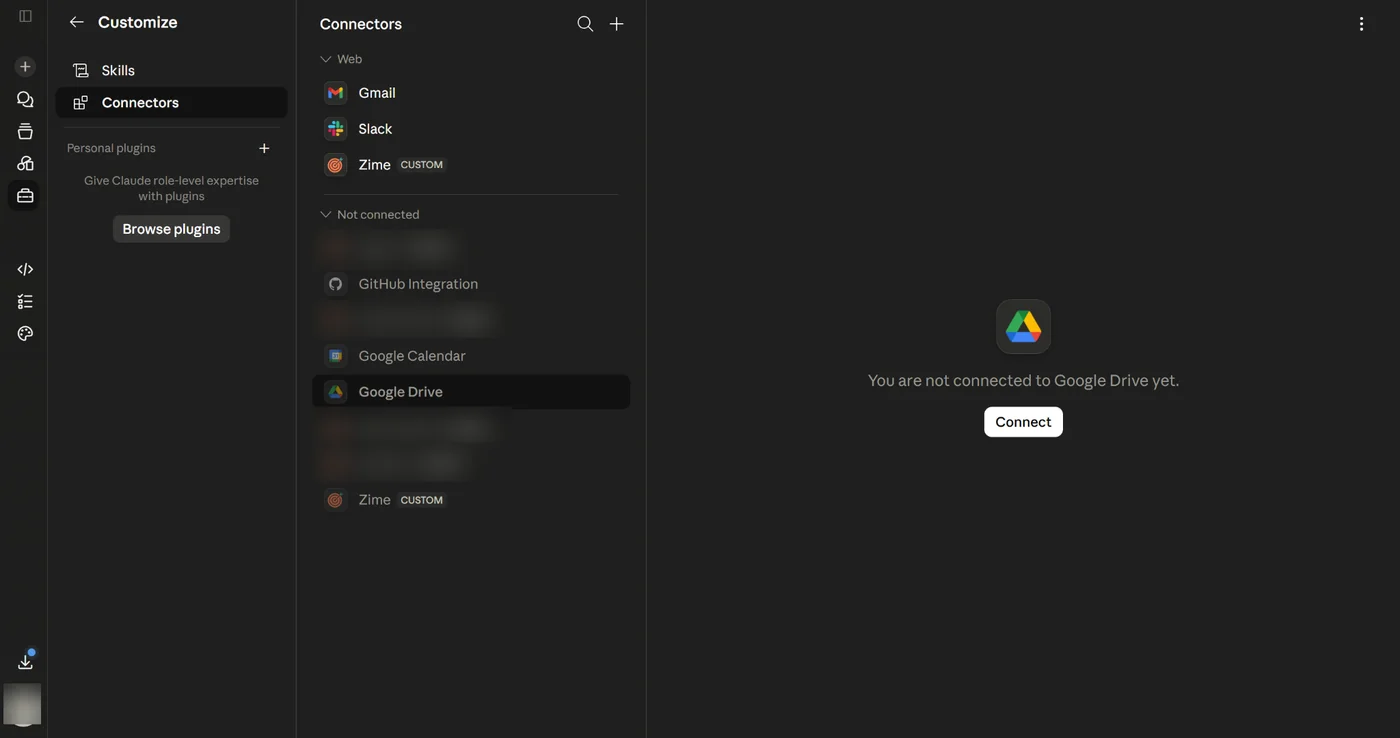
Click Connect and complete the Google OAuth sign-in. Grant Drive access when prompted.
Step 2: Create your scheduled task
Cowork is Claude's built-in automation layer. The Scheduled tab lets you create recurring tasks that run automatically in the background: no code, no third-party tools, no manual prompting.
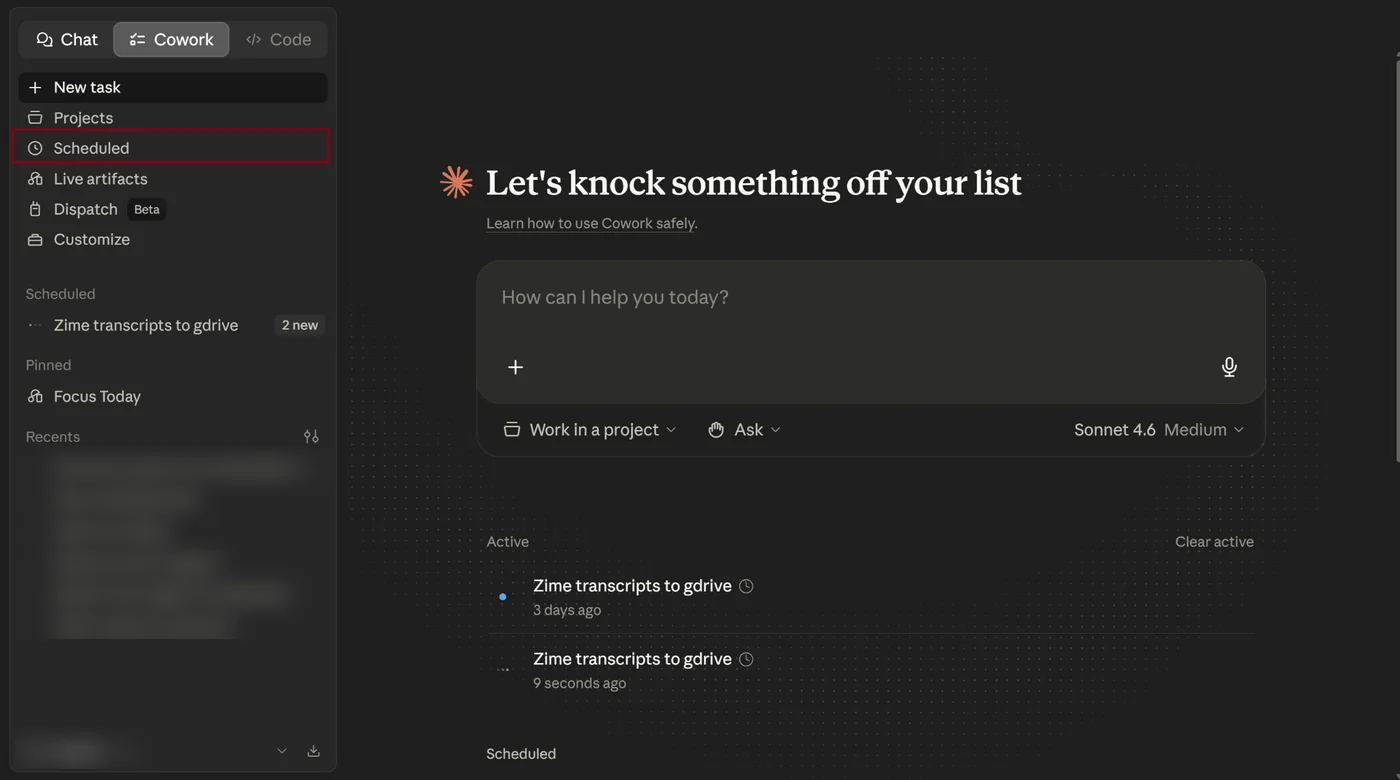
Click the Cowork tab in the Claude sidebar, then select Scheduled.
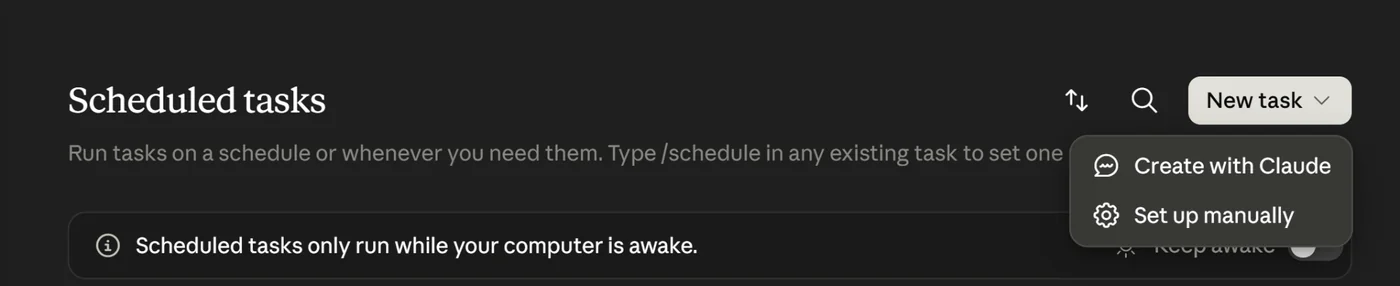
Select + New task to open the task creation panel.
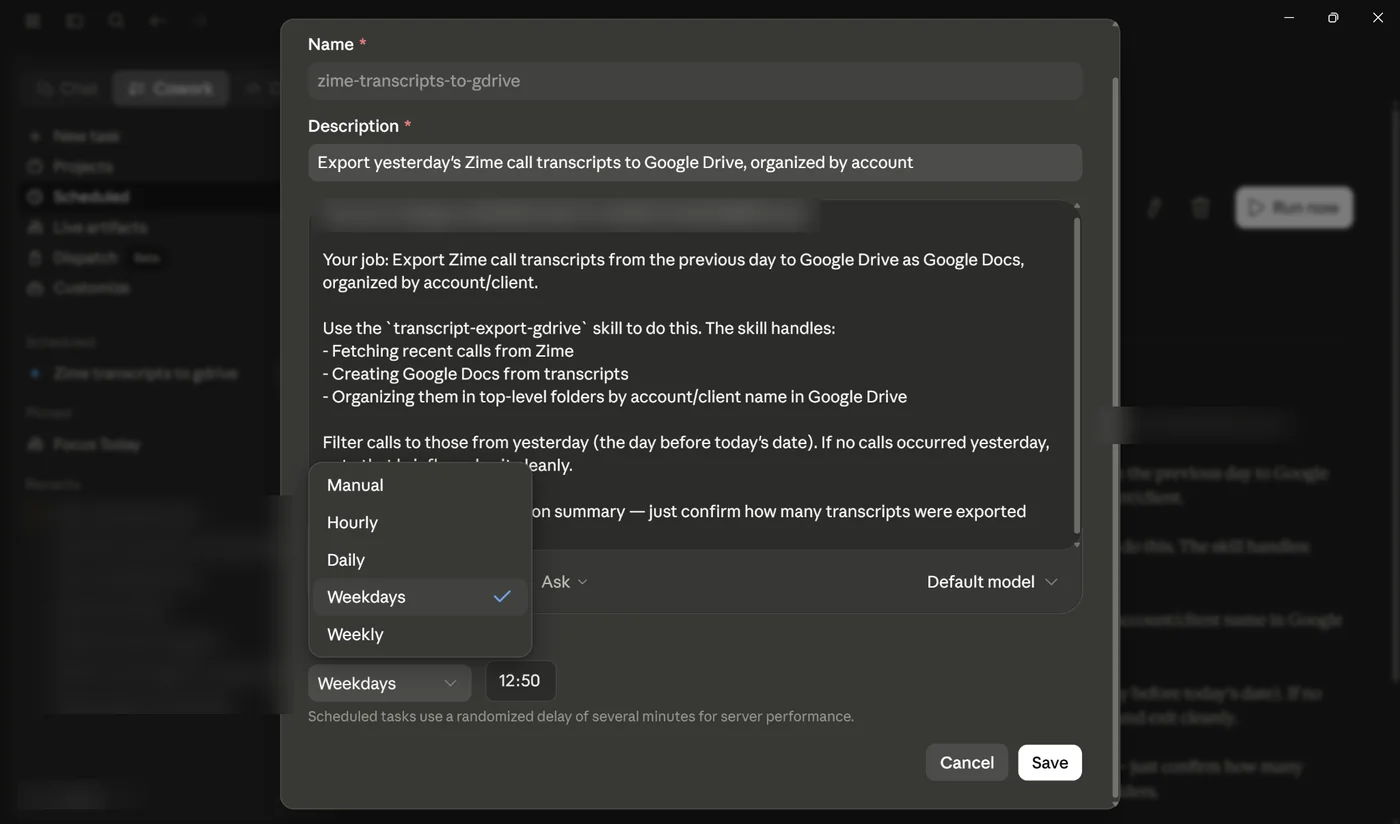
Use the UI controls to choose your cadence (daily, weekly, or specific days) and the time you want the export to run.
In the task's connector settings, toggle on both Zime and Google Drive.
Copy one of the ready-to-use prompts below into the task description field. Edit the folder name and cadence to match your preference.
Click Save. The task appears under Scheduled with its next run time. Claude handles every run from here.
Ready-to-use task prompts
Copy one of these into the task description field.
Daily (end of day)
Every day at 6 PM, export all new Zime calls from today to a Google Drive folder
called 'Daily Call Logs'. For each call, save one Google Doc with a structured
summary and the full verbatim transcript. Name each file: [Company]: Call Log
[Date].
Weekly (Friday wrap-up)
Every Friday at 5 PM, export all Zime calls from the past 7 days to a Google Drive
folder called 'Weekly Call Logs'. One Google Doc per call with structured summary
and full transcript. Name each file: [Company]: Call Log [Date].
Rolling 24-hour window
Each morning at 8 AM, export any Zime calls from the past 24 hours to a Google
Drive folder called 'Call Archive'. One Google Doc per call, structured summary +
full transcript below a divider.
What you can customize
| Option | How to set it |
|---|---|
| Frequency | Daily, weekly, or specific days, set via the UI time picker or described in the prompt. |
| Run time | Choose any time in the UI clock picker, or say "every day at 6 PM" in the prompt. |
| Drive folder | Name any folder in the prompt. Claude creates it automatically if it does not exist. |
| Scope | All calls, a specific account, or a date range: describe it in plain language. |
| File naming | Specify your preferred format. Default: [Company]: Call Log [Date]. |
| Summary depth | Short bullet summaries or full structured reports. Claude adjusts accordingly. |
Best practices
- Wait a few minutes after a call ends before the export runs. Zime needs time to process and transcribe the recording.
- Use Cowork Scheduled for all recurring exports. Set it once and every call is logged automatically, no manual trigger needed.
- Name the folder in your task prompt. Claude creates it in Drive automatically if it does not already exist.
- Fallback: if Drive saving fails for any reason, Claude pastes the summary and transcript into chat so nothing is lost.
- Test your schedule first. Run the Cowork task manually once after setup before the first automatic run fires.
Troubleshooting
The transcript is missing or incomplete in the exported doc.
The call is probably still being transcribed by Zime. Wait 10 to 15 minutes after the call ends and retry.
I cannot find the Drive file after a run.
Check the My Drive root. If you named a specific folder in the task prompt, confirm the folder name matches exactly.
Claude says it cannot access Google Drive.
The Google Drive connector is not enabled on the Cowork task. Open the task in Cowork, then Scheduled, toggle Google Drive on, and save.
The Zime connector is not responding.
Your Zime session may have expired. Open any Claude chat, type a Zime question to trigger re-login, then re-run the task.
The scheduled export did not run.
Open Cowork, then Scheduled, and check the task status. Confirm both the Zime and Google Drive connectors are enabled on the task. Click Run now to re-trigger it manually.
Still stuck? Contact support@zime.ai.